
Summary: This guide explains how to manage your event listings by either updating their details or removing them entirely. Following these steps allows you to keep your community informed with accurate information or permanently delete events that are no longer needed.
Before You Begin
You must have Admin permissions or access to the Sites product to manage content.
Edits: Changes made to an event will reflect on your live website immediately after saving.
Deletions: Deleting an event is permanent and cannot be undone. It will remove the event from all areas of your site where it was displayed.
Step-by-Step Instructions
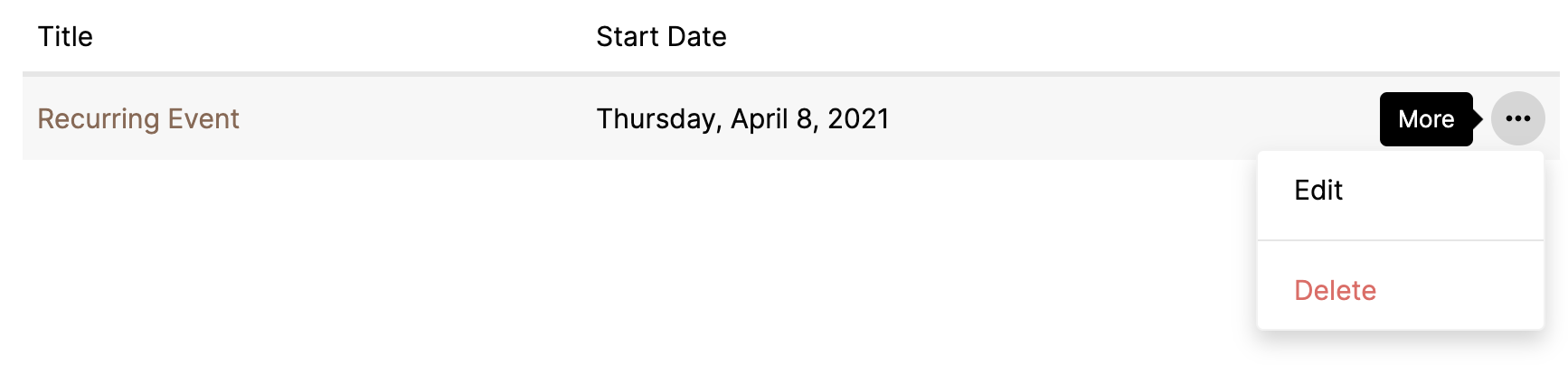
Option 1: How to Edit an Event
Navigate to the Sites product from your main dashboard menu.
Select Content from the left-hand navigation menu.
Note: The 'Events' section is the default view and will populate first within the Content area.
Hover your mouse over the specific event you wish to modify in the list.
Click the three dots (...) menu that appears on the right side of the event row.
Select Edit from the dropdown options.
Enter your updated information into the event details form (e.g., Title, Date, Location, Description, or Media).
Click the Save Event button to apply your changes.
Option 2: How to Delete an Event
Navigate to the Sites product from your main dashboard menu.
Select Content from the left-hand navigation menu to view your event list.
Hover your mouse over the specific event you wish to remove.
Click the three dots (...) menu that appears on the right side of the event row.
Select Delete from the dropdown options.
Click OK when the confirmation prompt appears asking, "Are you sure you want to permanently delete this event?"
Warning: Ensure you are deleting the correct event before confirming, as this cannot be undone.
Troubleshooting & FAQs
I accidentally deleted an event. Can I get it back? No. Deleting an event in Sites is permanent and cannot be undone. You will need to recreate the event manually if it was deleted by mistake.
I don't see the event I want to edit or delete. Ensure you are looking at the correct list. If you have many events, you may need to scroll down or check if the event has already passed (past events remain in the list unless deleted).
Will deleting an event remove it from the calendar view? Yes. Deleting an event removes it from all areas of your site where it was displayed, including lists and calendars.